Requirements
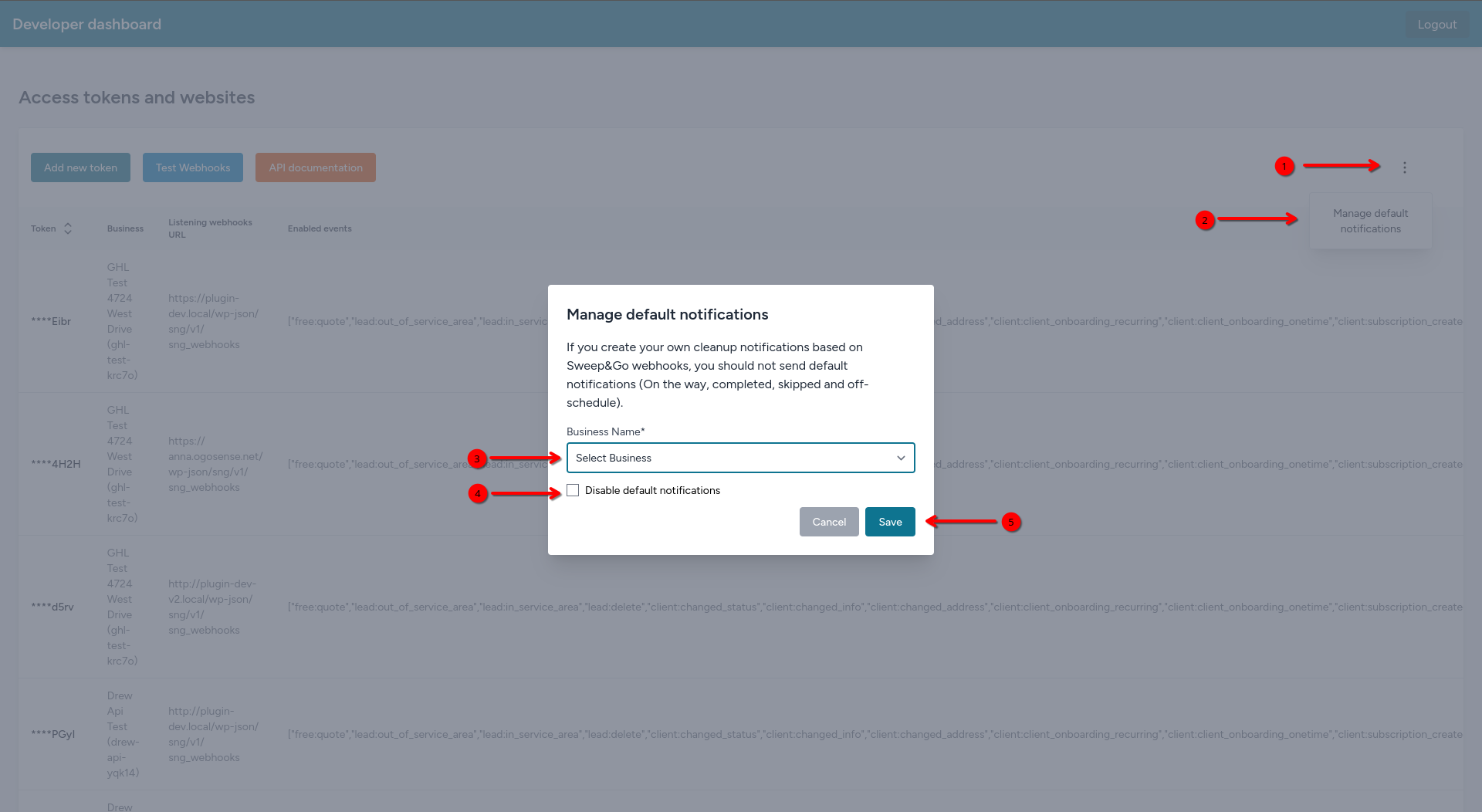
- After completing the plugin setup, be sure to disable Sweep&Go notifications at https://openapi.sweepandgo.com to prevent duplicate messages from both systems (screenshot included at the bottom of this page).
Initial Setup: SNG Notification Manager
Once the SNG Notification Manager plugin is installed and activated, follow these steps to configure the plugin and start sending and receiving status-based notifications.
Twilio Webhook Setup
To enable the plugin to receive client replies, you must configure the incoming message webhook in your Twilio Console. Before setting up the webhook, you must first create a Twilio account and set up your Twilio connection.
Once your Twilio connection is configured, follow these steps to complete the webhook setup:
- In Twilio Console, Account Dashboard should be located on the left side. Make sure Develop tab is selected.
- Go to Phone Numbers → Manage → Active numbers.
- Click the number you have set up in your Twilio connection.
- Make sure Configure tab is selected. Scroll down to Messaging Configuration.
- Under A message comes in, select Webhook and paste the following URL: https://your-domain.com/wp-json/sng-notification-manager/v1/twilio/incoming
- Replace your-domain.com with your actual WordPress site domain.
- Make sure the method is set to HTTP POST.
- Save your changes.
Incoming message webhook
If this webhook is not configured, the plugin will not receive client replies via SMS, and reply forwarding or automated responses will not work.
Accessing the Plugin's Settings
- Navigate to WP Admin → Notification Manager.
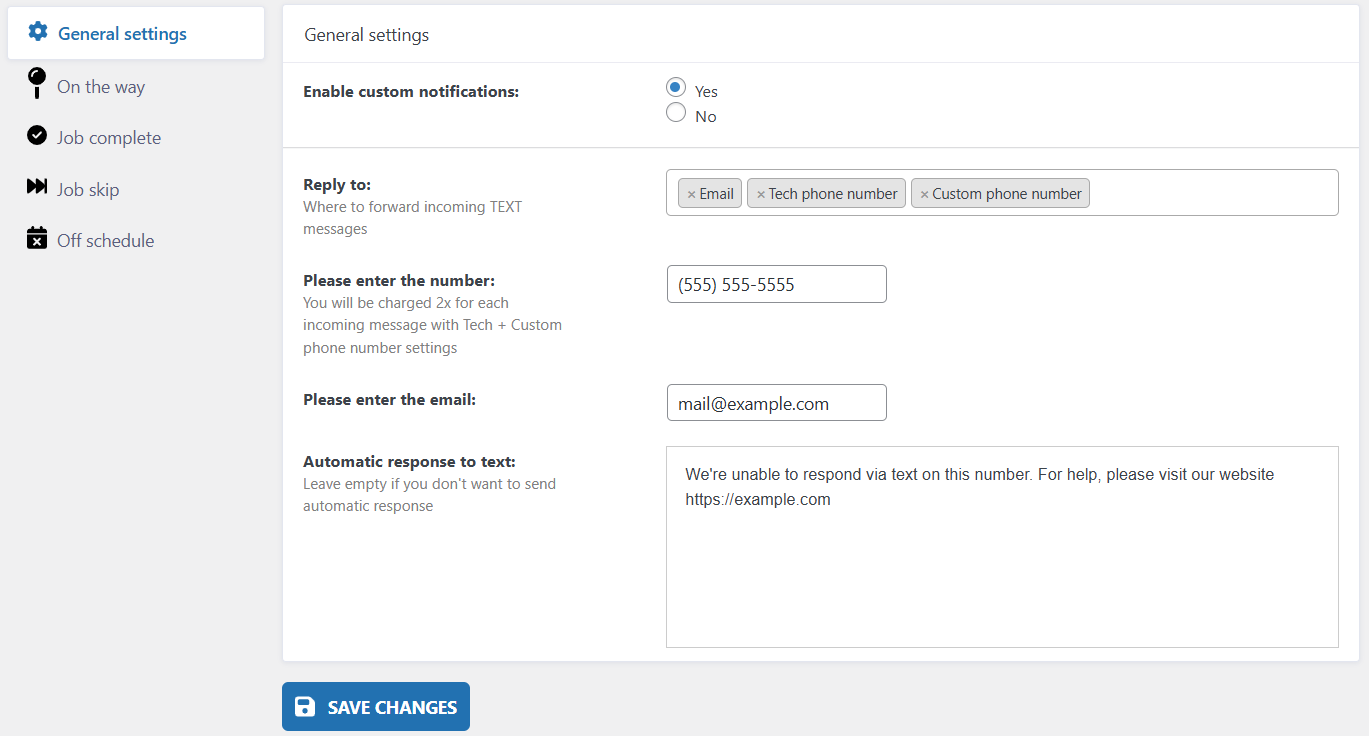
- You will find the main settings interface with the following options:
General Settings
Enable Custom Notifications
- Enabled: Activates the plugin and enables status-based notifications (on the way, completed, skipped, off schedule).
- Disabled: Disables notifications.
Reply To
- Choose one or more destinations to forward replies from client text messages.
- You can select:
- Email: Replies will be forwarded to the email address you enter below.
- Tech phone number: Replies will be forwarded to the designated technician's phone number.
- Custom phone number: Replies will be forwarded to your custom phone number.
- If Email is selected, an input field will appear to enter the recipient email address.
- If Custom phone number is selected, an input field will appear to enter the number.
- For more information about client replies, see Reply Forwarding.
Automatic Response To Text
- This message will be automatically sent to clients if their reply cannot be actively monitored.
- The auto-response is triggered in the following cases:
- The client replies to a notification type other than "On the Way", such as Job Complete, Job Skip, or Off Schedule.
- There is no active conversation with the client, meaning no notification has been sent to them in the past 24 hours.
- If you do not wish to send automatic responses, simply leave this field empty.
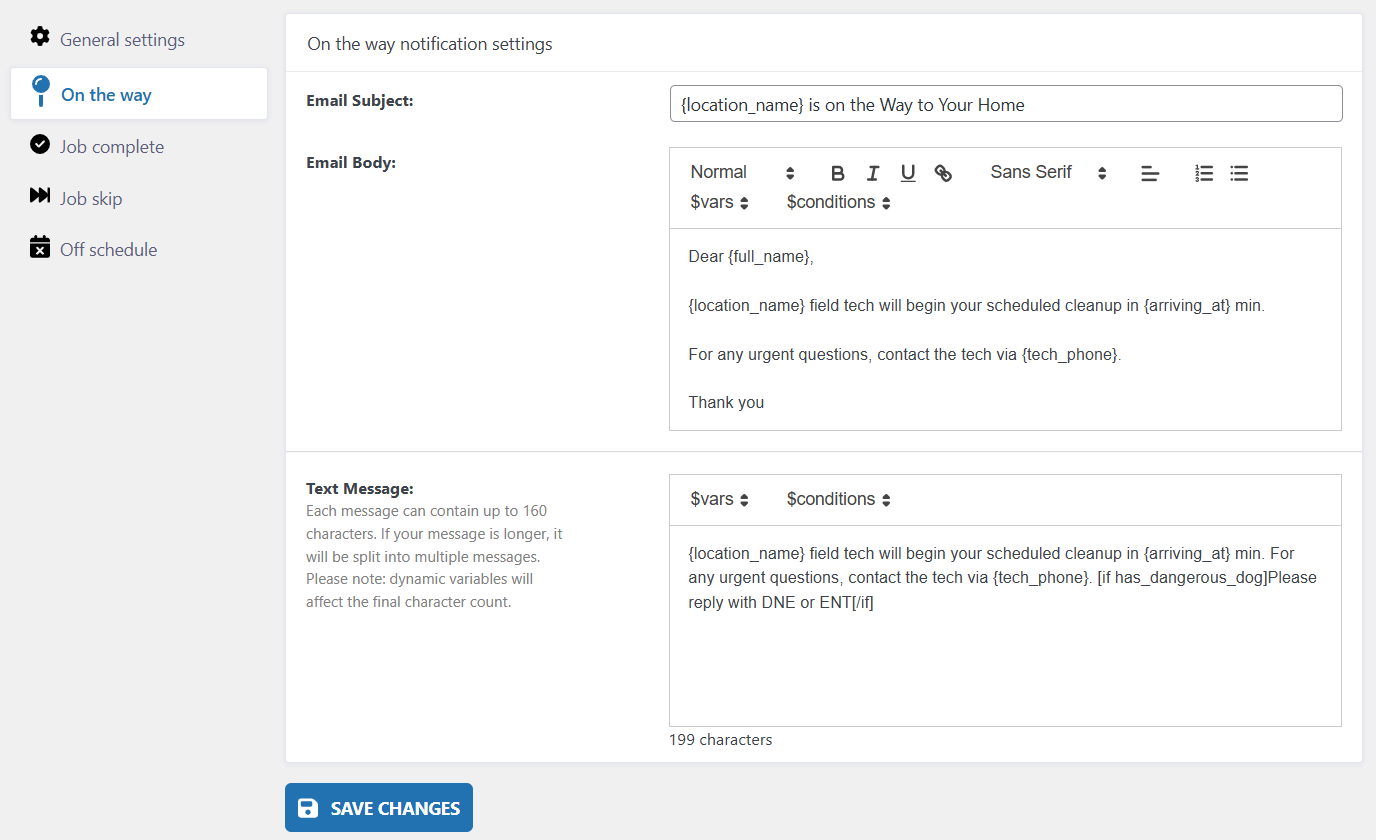
Notification Type Settings (On the Way, Job Complete, Job Skip, Off Schedule)
- Each of the four job status types has its own customizable settings section. The layout is the same for each:
Email Subject & Email Body
- Define the subject and content of the email that will be sent to the client.
- Use dynamic variables such as {full_name}, {location_name}, {arriving_at}, and {tech_phone} to personalize the message.
- Rich text editor is provided for easy formatting.
Text Message
- Write a message that will be sent via SMS.
- Requires: Twilio connection.
- The message can contain up to 160 characters. If your message exceeds this limit, it will be split into multiple messages.
- Dynamic variables also work in SMS content.
- You may include conditional content using [if variable] ... [/if] syntax.
- Example: [if has_dangerous_dog]Please reply with DNE or ENT[/if]
- If your Sweep&Go client didn't provide a phone number, they will get the email notification instead.
Dynamic content
Using dynamic variables and conditions allows your messages to be highly personalized. Just keep in mind that they will affect the final character count of your SMS.
Saving your configuration
- After making changes in any section, don’t forget to click the Save Changes button at the bottom of the page.
Screenshots