Initial Setup: SNG Gift Certificate
After installing and activating the SNG Gift Certificate plugin, follow these steps to configure it for your website.
Accessing the Settings
- Navigate to WP Admin → SNG Gift Certificate → Settings to access the plugin settings page.
- Configure the options as outlined below to tailor the plugin to your business needs.
Settings Overview
General Settings
-
Certificate ID Prefix
- The Certificate ID is unique by default (e.g.,
#552890). - Add a prefix to customize it. For example, setting the prefix to
SNG_will change the ID format to#SNG_552890.
- The Certificate ID is unique by default (e.g.,
-
Suggested Amount
- This amount will be prefilled on the gift certificate form.
- Default: $100 (can be customized).
-
Enable Bonus
- Enable/Disable: Turn this feature on or off.
- Bonus Threshold: Set the minimum amount required for the bonus to apply.
- Bonus Type:
- Percentage: Add a percentage bonus to the gift certificate value.
- Fixed: Add a fixed bonus amount.
-
Gift Certificate Expiry
- Never Expires: Gift certificates will not have an expiration date.
- Set Expiry Date: Specify expiration in days, months, or years.
-
Form Disclaimer
- Display a disclaimer or promotional message on the gift certificate form.
- Example: "For Black Friday, get a 10% bonus on $100+ certificate purchases!"
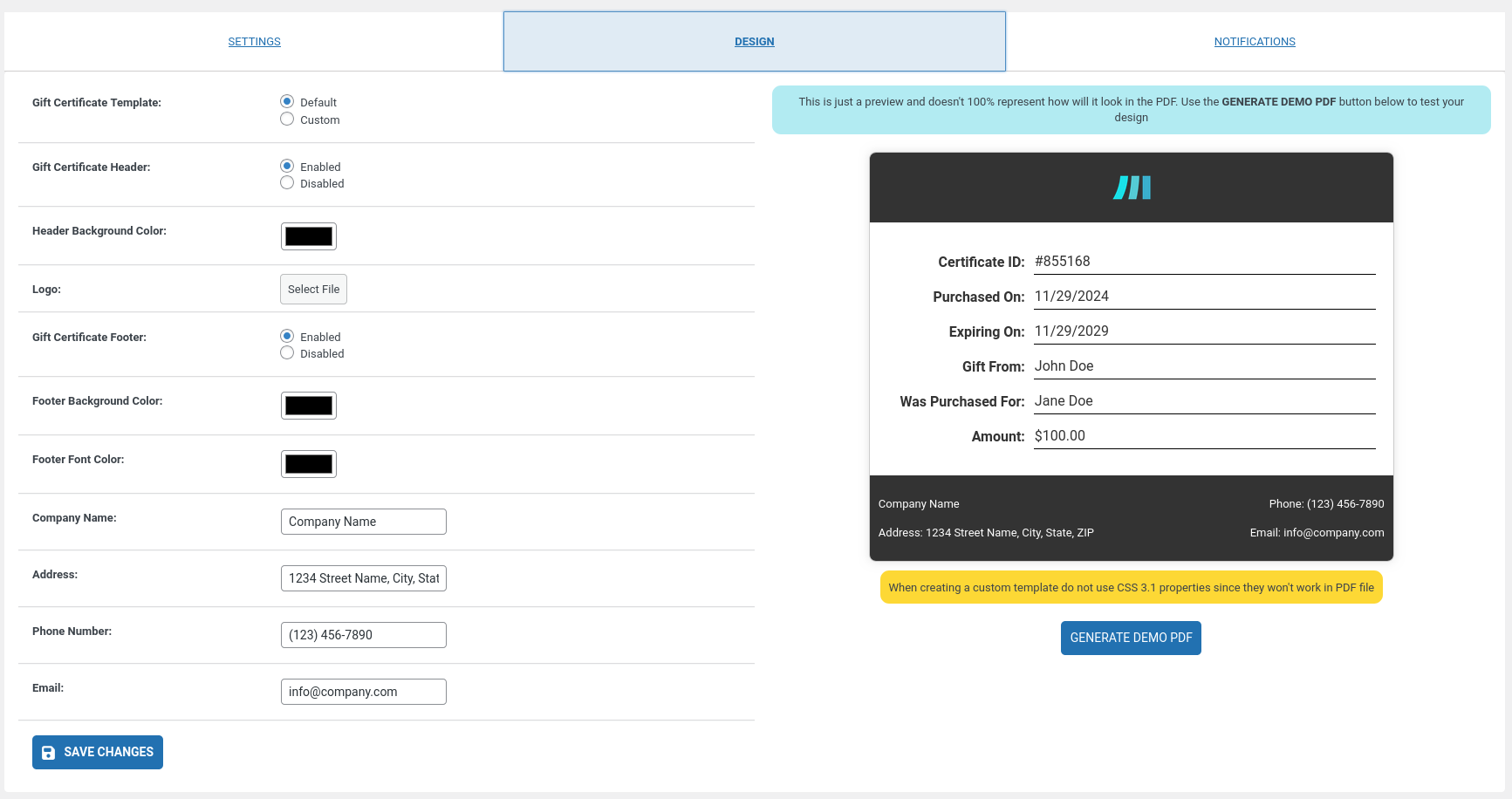
Design Settings
- Gift Certificate Template
- Default Template: Use the built-in template and customize it through the provided settings.
- Custom Template: Upload a custom gift certificate template to design your own (requires HTML/CSS).
Template Customization
- The following settings apply only when using the Default Template.
- For Custom Templates, design changes must be made directly within the uploaded template.
Default Template Options
- Gift Certificate Header
- Enabled: Show the header in the certificate PDF.
- Disabled: Hide the header in the certificate PDF.
- Header Background Color: Set the background color of the header.
- Logo: Upload your company logo to display in the certificate header.
- Gift Certificate Footer
- Enabled: Show the footer in the certificate PDF.
- Disabled: Hide the footer in the certificate PDF.
- Footer Background Color: Set the footer's background color.
- Footer Font Color: Customize the footer text color.
- Footer Info:
- Company Name: Add your business name.
- Address: Add your business address.
- Phone Number: Add your business phone number.
- Email: Add your business email address.
Generate Demo PDF
- Once you’ve updated your settings, click the Generate Demo PDF button to download a sample certificate with dummy data. This lets you preview how it will appear to clients.
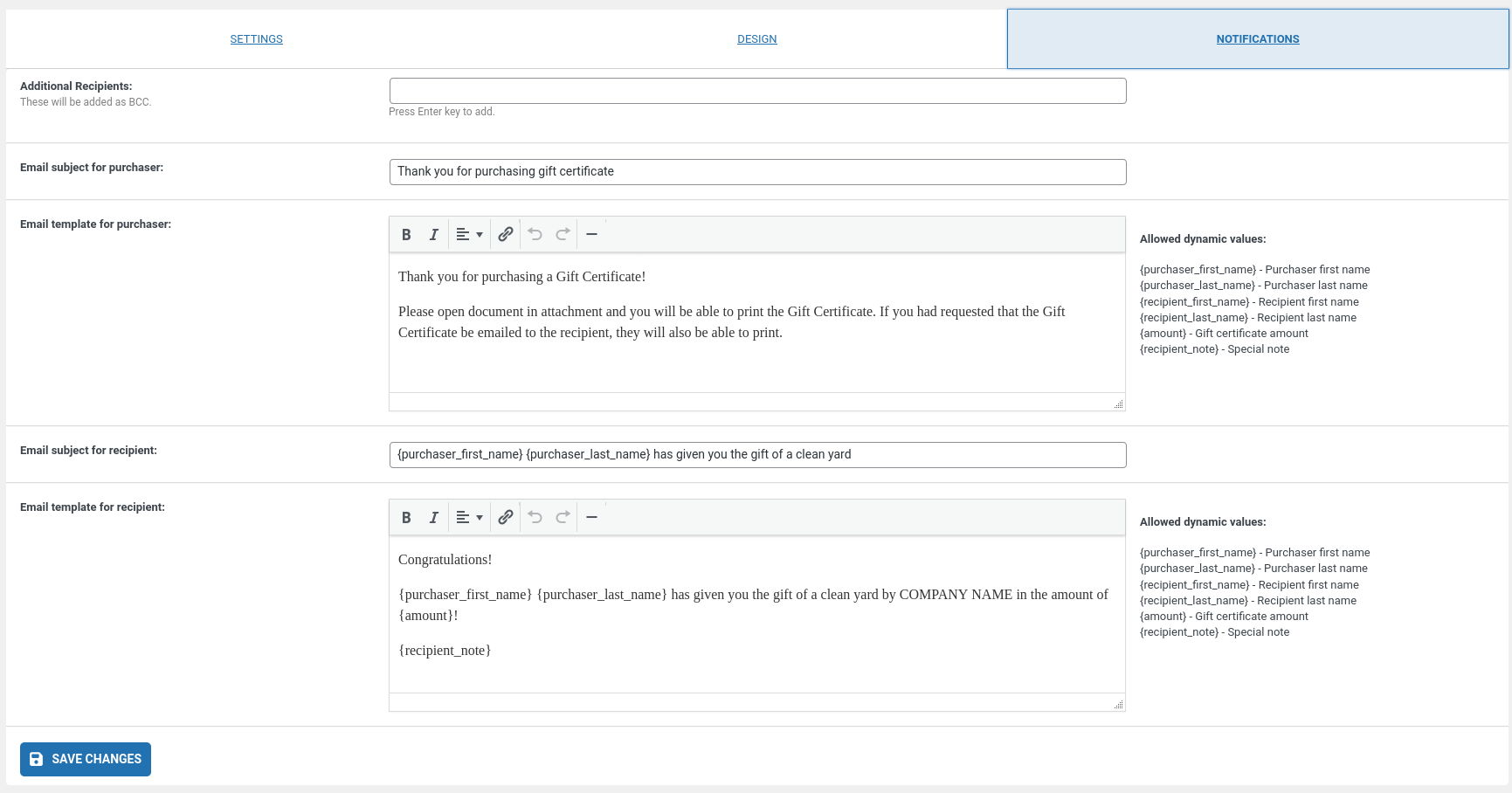
Notifications
- Additional Recipients
- Add email addresses to receive a copy of every purchased gift certificate (email and PDF).
- Email Subject for Purchaser
- Customize the subject line for the email sent to the buyer.
- Email Template for Purchaser
- Customize the body of the email sent to the buyer.
- Email Subject for Recipient
- Customize the subject line for the email sent to the gift certificate recipient.
- Email Template for Recipient
- Customize the body of the email sent to the recipient.
With the above configuration options, you can ensure that the SNG Gift Certificate plugin meets your business requirements and provides a seamless experience for your clients.
Screenshots